Go back to list of posts
Ready in 10 Minutes: Apple Wallet Business Card for Professionals
Last modified: September 7, 2026


Yes, Apple Wallet works as a professional business card, but only if you use the right file format. You need a Wallet pass built as a .pkpass, not a saved contact or vCard. The fastest way to get one running is a generator or platform like KADO, which builds the pass and gives you a QR code, an AirDrop option, and lock-screen access in one setup.
Wallet passes in .pkpass format support offline display and lock-screen access, unlike vCards that only save contact info within the Contacts app. Creating an effective Wallet business card involves designing a simplified pass with essential fields and testing updates before real events. QR codes are the most universal sharing method, suitable for large audiences, while NFC tags excel for repeated in-person exchanges at trade shows. Dynamic passes allow real-time updates to contact details, but static passes require redistributing new versions when information changes. Compatibility hinges on current iOS versions, proper pass generation, and Android users receiving links or web profiles, not .pkpass files directly.
What Is an Apple Wallet Business Card, and How Is It Different From a vCard?
An Apple Wallet business card is a Wallet pass built in Apple’s .pkpass format. It’s a small, signed bundle of JSON data and image assets that Apple Wallet reads and displays like a boarding pass or a loyalty card, complete with lock-screen access and offline display.
A vCard (.vcf) is a different animal entirely. It’s a plain contact file that gets saved directly into someone’s Contacts app. Apple Wallet does not read .vcf files as passes, so if your generator produces a vCard instead of a .pkpass, it won’t show up in Wallet at all. This is the single most common source of confusion for professionals building their first digital card.
Here’s why professionals increasingly reach for the Wallet pass format instead of a plain vCard:
- Works offline. A saved pass displays fully without a network connection, useful in conference halls with spotty Wi-Fi.
- Lives on the lock screen. Wallet passes can surface via NFC or location triggers, so your card is one tap away instead of buried in an app.
- Looks like your brand. You control the background color, logo, and layout, not a generic contact icon.
- Some platforms support live updates. Mysignature notes that Wallet passes are more flexible for branding and updates than a vCard, which becomes static the moment someone saves it.
The tradeoff is worth knowing upfront. A basic pass is a snapshot. Unless your provider pushes updates to the server, the phone number or title printed on that pass the day someone saved it is what they’ll see a year later. Keep that limitation in mind before you build the card and it won’t bite you later.
How Do You Create a Wallet Business Card and Add It to Apple Wallet?
It is possible to have a working pass on your phone in under ten minutes. Here’s what to gather first, then the steps to build and test it.
What you need before you start:
- Your contact fields: name, title, company, phone, email, and one link (website, scheduling page, or a canonical profile)
- A logo or headshot, sized square if your generator asks for it
- Access to a .pkpass generator or a platform like KADO
- An iPhone to test the finished pass on
Steps to build and add the pass:
- Design the card. Enter your contact fields into the generator or platform. Keep it to the essentials; a cluttered pass is harder to scan at a glance.
- Generate the .pkpass file. Most modern tools do this in-browser without requiring an app install. NeatPass documents this no-app approach directly, generating a pass or QR code you add to Wallet through Apple’s own Add to Wallet interface.
- Open the pass link on your iPhone. Tap the link from Safari, Messages, or Mail. iOS recognizes the .pkpass file automatically.
- Tap “Add” in the top corner. The pass drops into Apple Wallet immediately. No separate app download required.
- Test on a second device. Send yourself the link, or have a colleague scan your QR code, and confirm the pass adds cleanly and displays every field correctly.
On the technical side, PassKit passes are structured bundles with signed assets and specific size requirements. Most consumer-facing generators handle that signing and packaging automatically, but a fully custom pass built from scratch needs a developer familiar with Apple’s PassKit specification. For the vast majority of professionals, a generator or platform removes that complexity entirely.
Pro Tip: Before you rely on your pass at a real event, test how it behaves after you update a field. Change your title or phone number in the platform, then check whether the version already sitting in your Wallet updates automatically or stays frozen. Some providers push changes; many don’t. Know which one you have before you hand out a hundred QR codes.
One quick prerequisite worth confirming: your iPhone needs a reasonably current iOS version to add and render passes reliably. If Add to Wallet fails, an outdated iOS is one of the first things to rule out, and it’s covered in more detail in the troubleshooting section below.
Which Sharing Method Should You Use: QR, AirDrop, NFC, or a Link?
The right sharing method depends entirely on the setting you’re in, not personal preference. Here’s how the four main options stack up.
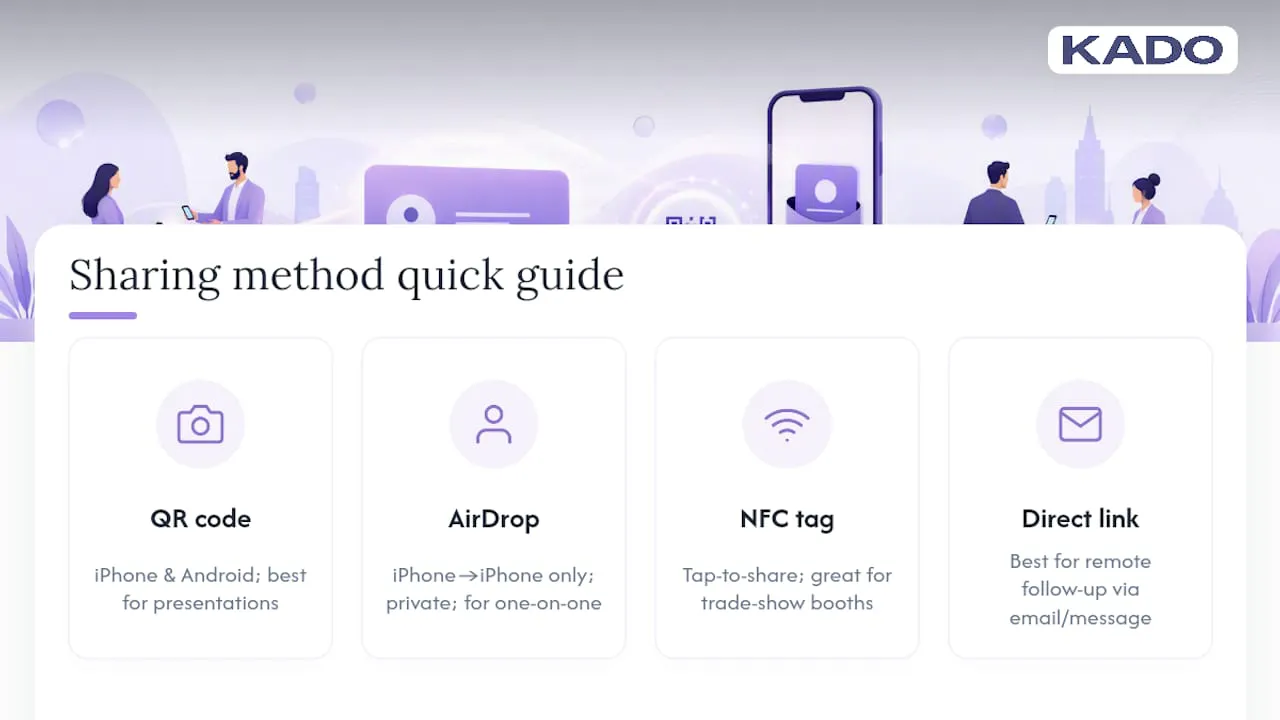
QR code. The most universal option, and the one that works whether the other person has an iPhone or an Android phone. A QR code linking to your Wallet pass or web profile works on a slide, a name badge, or a printed table tent. It’s the best choice for stage presentations and conference booths where you’re reaching a crowd rather than one person.
AirDrop. Fast and private, but it only works iPhone to iPhone with both devices in range and AirDrop enabled. Reserve it for one-on-one meetings where you can see the other person’s phone and confirm the transfer, like after a coffee chat or a client sit-down.
NFC (physical tag). A tap-to-share card or badge embedded with an NFC chip works well for repeated in-person exchanges, like a trade show booth where you’re greeting dozens of people in a row. It’s faster than fumbling for a QR code each time, but it requires you to carry the physical tag and the recipient’s phone must support NFC reading, which most modern iPhones and Android devices do.
Link or email. The right call for remote follow-up. If you met someone virtually or want to send your card after the fact, a direct link in an email signature or a message thread beats asking someone to scan anything.
For events specifically, offline reliability matters more than people expect. A Wallet pass displays fully without a network connection, which becomes a real advantage in venues with weak cellular coverage or overloaded Wi-Fi, exactly the conditions at most large conferences.
Practical staging tip: if you’re presenting to a room, put your QR code on the last slide, not the first, so it’s the final thing people see before they start filing out. And before you walk on stage, actually test that your pass opens from a lock-screen tap. A code that looks fine on your laptop screen can render too small or low-contrast when projected. Walk to the back of the room and check it yourself.
For one-on-one exchange with an Android user, hand them a link to your web profile rather than trying to force a Wallet-specific format they can’t open. A QR encoded with vCard data or pointing to a browser profile is the most cross-platform-friendly route, and it’s worth building that fallback into your card from day one. More on live event workflows is covered in this networking events guide.
What Should You Include on the Card (and What Should You Leave Off)?
Good pass content answers one question fast: who are you, and how does someone reach you? Everything beyond that competes for attention it doesn’t need.
Include these fields:
- Full name, job title, and company
- One direct contact method (phone or email, ideally both)
- A single credential line if it’s relevant (“Licensed Realtor,” “CPA,” “20 years in commercial insurance”)
- One canonical link: your website, a scheduling page, or a lead capture form
- Your logo or headshot for brand recognition at a glance
Leave these off:
- Multiple redundant links (pick one, not five)
- Long bios or paragraph descriptions
- More than one call-to-action button
- Social handles that don’t drive a business outcome
Visually, contrast is everything. A QR code with low contrast against its background fails to scan under bad conference lighting more often than people realize. Test your pass under a dim room light, not just your bright office monitor. Keep text minimal; a pass crammed with three fonts and four colors reads as unprofessional next to a clean design with one accent color and generous white space.
Compare a cluttered pass, five links, a paragraph bio, three phone numbers, against a clean one with a name, title, one phone number, and a single “Book a Call” button. The second version gets tapped. The first gets glanced at and dismissed.
Design guidance specific to layout and fields is covered further in this guide to building a digital business card.
Pro Tip: Pick exactly one call-to-action for your pass, not two competing ones. “Schedule a call” and “Visit my website” pulling in different directions confuses people into doing neither. Choose the action that actually moves your business forward and make that the only button.
Static vs. Dynamic Passes: How Do Updates Actually Work?
A Wallet pass generated without server-side support is a static snapshot. Once someone saves it, whatever information was on it at that moment is what stays on it, permanently, unless you rebuild and redistribute a new version.
A dynamic pass works differently. The issuing platform can push updates to a pass already sitting in someone’s Wallet, so a changed phone number or new job title propagates without the recipient doing anything. That depends entirely on the issuer running a push mechanism on their end; confirm with whichever provider you use whether they actually support this before assuming it’s automatic.
Here’s how to decide which route fits your situation:
- Solo professional, rarely changes roles: a static pass with a canonical link is often enough.
- Sales rep or recruiter with frequent title, territory, or contact changes: a dynamic-supporting platform saves you from redistributing cards every quarter.
- Team or company issuing cards at scale: dynamic updates paired with CRM sync keep every employee’s card accurate without manual chasing.
The safest workflow regardless of which type you choose is to build in a fallback. Include one canonical web profile link directly on the pass. If the pass itself goes stale, that link still points to your current information, giving recipients a single reliable place to check instead of a dead end. That single design choice protects you against the biggest weakness of static passes: information rot nobody notices until it’s embarrassing.
If you do end up needing to reissue a pass entirely, have a plan for notifying people who already saved the old one, whether that’s a follow-up email or a note on your profile page pointing them to the refreshed version.
What Are the Technical Requirements and Compatibility Notes?
A few small technical facts prevent most of the frustration people run into with Wallet passes.
- iOS version. Your iPhone needs a reasonably current iOS release for reliable Add to Wallet behavior. If a pass fails to add, checking for a pending iOS update is the first troubleshooting step.
- File format. Apple Wallet requires the .pkpass format specifically. A .vcf vCard will not display in Wallet under any circumstance, no matter how the link is shared.
- Offline behavior. Once saved, a Wallet pass renders fully without an internet connection. A link-based web profile, by contrast, needs data or Wi-Fi to load, which matters in basements, elevators, or crowded venues with dead cellular coverage.
- Apple Watch. Passes saved to Wallet sync to Apple Watch automatically, letting you present your card with a wrist raise instead of pulling out your phone, a small but real convenience at a crowded booth.
- Android recipients. Android phones don’t run Apple Wallet, so an Android user can’t add your .pkpass directly. Send them the underlying link instead, ideally one that opens a web profile or offers a vCard download for their own Contacts app.
That last point is worth planning around from the start rather than discovering mid-conversation. If your networking mix includes a lot of Android users, build your sharing habit around links and QR codes that resolve to a browser page, and treat the Wallet pass as the iPhone-specific enhancement layered on top.
What Do You Do When Add to Wallet Fails?
Most add failures trace back to one of a handful of causes, and they’re usually quick to isolate.
- Check the iOS version. An outdated iOS is the single most common reason Add to Wallet silently fails or the button never appears.
- Confirm an internet connection. Even though the saved pass works offline, the initial add process requires a live connection to fetch and verify the pass.
- Regenerate the pass. If the file was corrupted during creation or the link expired, rebuilding it from your generator or platform usually resolves the issue instantly.
- Validate the PassKit resources. For custom-built passes, a missing image asset or a signing error will block the add. This is where developer involvement matters if you’ve gone outside a standard generator.
- Test on a second device before wide distribution. Send the pass to a colleague or a spare phone and confirm it adds cleanly and every field displays correctly before you print the QR code on five hundred conference badges.
If you’re issuing passes to a team or a client list, build a habit of testing update behavior specifically, not just the initial add. Change one field, wait for the push (or confirm there isn’t one), and verify what actually shows up on an already-saved pass. Skipping that check is how outdated contact information ends up circulating for months without anyone noticing.
When you do need to reissue a pass entirely, whether because of a redesign or a platform switch, have a short message ready for people who saved the original, pointing them to the new version or the canonical profile link that stays current either way.
How Does KADO Handle Wallet Passes, Updates, and Lead Capture?
KADO builds Wallet pass creation directly into its card platform, so professionals aren’t stitching together a separate generator, a QR tool, and a CRM by hand. A user designs their card fields once, generates the pass, and shares it through a QR code, AirDrop, or a direct link, with the underlying profile staying connected to the platform rather than frozen at the moment of creation.
That connection matters most for two groups. Event teams running a booth need a card that survives a full day of scanning without a hiccup, and reps who change territories or titles need updates to reach cards already sitting in prospects’ Wallets rather than requiring a full reissue.
Event team workflow:
- Generate one branded pass template for the whole team ahead of the show
- Present QR codes at the booth for fast, no-typing contact exchange
- Route every scan into a shared lead capture form instead of loose notes
Sales rep workflow:
- Keep a personal Wallet pass linked to a live profile for one-on-one meetings
- Tag and follow up on new contacts through the platform’s contact management tools
- Sync captured leads to a CRM instead of manually re-entering business cards later
Internal case study and adoption metrics placeholder: content team to add specific customer results and usage figures here once available.
What’s the Simplest Way to Launch a Wallet Business Card Before Your Next Event?
The most reliable workflow is straightforward: build your pass on a platform that supports dynamic updates, add it to Wallet, present the QR code at your event, then follow up through your link or CRM afterward.
Before you walk into that next conference or client meeting, run this three-item check:
- Test the pass on a second device to confirm it adds cleanly and every field is correct.
- Put the QR code on your last slide or a printed table card, sized big enough to scan from a few feet away.
- Prepare your follow-up link so captured contacts flow somewhere real instead of sitting in a notes app.
Whatever platform you choose, keep one canonical profile link on the card. It’s the cheapest insurance against a pass going stale, and it costs you nothing to add.
What Networking With a Wallet Card Actually Teaches You
Speed is the thing people underestimate most about Wallet-based cards. A saved pass opens instantly from a lock screen, no app hunting, no typing a name into Contacts while someone waits, and that offline reliability holds up in the exact rooms where phones struggle most, packed conference halls with dead Wi-Fi.
The habit worth building before your next event: put your QR code on the very last slide of any talk you give, and actually test lock-screen access yourself beforehand rather than assuming it works. That thirty-second check catches more failed shares than any other single step.
Internal case-study link placeholder: reference a KADO customer example here once available.
— KADO
Build Your Wallet Business Card Without the Guesswork
Some platforms simplify this process into a few clicks rather than a technical project. Users design card fields once, generate a Wallet pass, and share it through QR, AirDrop, NFC, or direct links, with updates and lead capture connected to a unified profile instead of separate tools.
That matters most once you’re standing at a booth or handing your phone across a table: KADO’s Wallet pass workflow folds QR presentation, contact capture, and CRM sync into one connected system rather than a generator here and a spreadsheet there. For teams tracking whether an event was worth the travel budget, that same captured-lead data feeds into event ROI reporting, turning a stack of new contacts into a measurable outcome.
If your networking flow includes a lot of remote follow-up, a landing page tied to your Wallet pass keeps things consistent; a partner like Amigo Labz can help build that page if you want something custom rather than a template.
Ready to see your own card in Wallet? Create your digital business card in about two minutes and test the Add to Wallet flow on your own phone before your next meeting.
Sources
Frequently Asked Questions
Can I Add a Business Card to Apple Wallet?
Yes. You need a Wallet pass in Apple’s .pkpass format, which you can generate through a browser tool or a platform like KADO, then add through the standard Add to Wallet flow.
How Do I Create a Business Card for Apple Wallet?
Enter your contact fields and logo into a .pkpass generator or platform, generate the pass, open the link on your iPhone, and tap “Add” to save it to Wallet.
Can I Create a Business Card With Apple Pay?
No. Apple Pay handles payment cards, not contact information. A business card belongs in Apple Wallet as a .pkpass pass, a separate feature from Apple Pay entirely.
How Can I Convert My Business Card to Apple Wallet?
A standard vCard (.vcf) file cannot convert directly into a Wallet pass; you need to rebuild your contact details as a .pkpass file using a generator or a platform designed for Wallet passes.
Do Wallet Business Cards Work Without an Internet Connection?
Yes. Once saved, a Wallet pass displays fully offline, which makes it more reliable than a web-based profile link in venues with weak Wi-Fi or cellular service.