Go back to list of posts
For Teams: Create a Google Wallet Business Card in 2 Minutes, No Code
Last modified: September 10, 2026


Meta Title: Google Wallet Business Card: Add Yours in Minutes Meta Description: Learn how to create a Google Wallet business card, add it on Android, share it via QR or NFC, and keep it updated automatically.
Yes, you can add a business card to Google Wallet, and the fastest route is a no-code Wallet pass generator that turns your contact details into an Add-to-Wallet link or QR code in a few minutes. You scan the code or tap the link, confirm the add on your Android phone, and the card lives in your Wallet app from then on. Prefer a custom build? The Google Wallet API lets developers issue passes programmatically, though that route takes longer and needs engineering time.
Creating a Wallet pass can be done instantly with no-code generators, which link back to your live profile and automatically update when you change details. Static exports require regeneration and resent once your information updates, whereas live-linked passes reflect changes automatically without reissuance. Proper link formatting, installed Google Wallet app, and signed URLs are crucial to avoid common issues like failed add prompts or outdated information display. Large teams benefit from centralized management platforms that ensure brand consistency, track usage, and streamline updates across hundreds of passes. NFC cards for digital profiles complement Wallet passes and require separate hardware but can be integrated into a unified management system for greater scalability.
What Is a Google Wallet Business Card? A Google Wallet business card is a Wallet pass that can be shared digitally. That distinction matters more than it sounds. A traditional vCard is a static file: once you send it, the copy sitting on someone’s phone never changes. A Wallet pass, by contrast, is a live object tied to a link, so the front of the card can refresh automatically and some platforms track when it gets opened or tapped.
What shows up on the pass itself is deliberately minimal:
- Your name, job title, and company
- A profile photo or company logo
- A QR code or link that opens your full digital profile
- Sometimes a short call-to-action, like “Schedule a Call” or “View Profile”
The pass only works inside the Google Wallet app on Android, but the link behind it opens in any browser. That means an iPhone user who receives your pass link still sees your profile, they just cannot save it as a native Wallet pass the way an Android user can.
Two Ways to Create a Wallet Business Card
Most professionals fall into one of two camps: those who want something working today, and those who need a fully custom, branded issuance system tied into internal tools.
- No-code generators: Platforms built for digital business cards let you build a profile and export it as a Wallet-ready pass without touching a line of code.
- Google Wallet API: A developer builds the pass class, signs the issuance tokens, and controls every visual and functional detail from scratch.
If you’re an individual professional, a consultant, or a small sales team, the no-code path gets you a working pass today. For larger organizations needing custom branded passes at scale, the API route may justify the extra engineering time.
Building Your Pass the No-Code Way
Here’s the sequence most no-code platforms follow:
- Create your profile. Add your photo, job title, company, phone number, email, and any links you want front and center, like a scheduling page or LinkedIn.
- Generate the Wallet pass. Look for an “Add to Wallet” or “export to Wallet” option. This packages your profile into a pass format Android recognizes.
- Customize the front. Choose your accent color, confirm your logo is legible at a small size, and decide what one call-to-action link deserves top billing.
- Share the pass. You’ll get a QR code and a direct link. Either one triggers the same add-to-Wallet flow when opened on an Android phone.
The part worth understanding: the pass doesn’t carry a frozen snapshot of your details. It links back to your live profile, so if you change your title, phone number, or company next month, anyone who already added your pass sees the update automatically, without you resending anything.
Pro Tip: Test your pass on your own phone before handing it out at an event. A logo that looks sharp on your laptop screen can turn into a blurry smear on a five-inch display.
The Developer Route: Google Wallet API Basics
Building a pass through the Google Wallet API is a different kind of project entirely, closer to a mini software build than a five-minute setup.
- Set up a Google Cloud project and enable the Wallet API
- Define a pass class (the template) and a pass object (the individual card data)
- Sign a JWT (JSON Web Token) for each issuance to authenticate the add request
- Host and deliver the resulting Add-to-Wallet link, often through your own website or email system
This gives you full control over field structure and branding, but it also means your team owns the maintenance. Some fields on an issued pass can update through the API without reissuing it. Others, particularly structural changes to the template itself, may require pushing a new pass class entirely. Budget real engineering time here, not an afternoon.
Adding the Pass to Your Android Phone
Once a pass exists, whether it came from a no-code tool or a custom API build, adding it follows the same basic pattern on Android.
- Open the Add-to-Wallet link, or scan the pass’s QR code with your camera.
- Tap “Add to Google Wallet” when the prompt appears.
- Confirm your Google account if you’re signed into more than one, since Android sometimes asks which account should hold the pass.
- Find the card inside the Wallet app under your saved passes, ready to show by tapping it open.
Most add flows hinge on the link opening correctly in the first place. Correctly formatted MIME types and content headers determine whether your phone’s browser recognizes an Add-to-Wallet link as something Wallet should handle, rather than downloading it as a random file or throwing an error. If a QR scan opens a blank page or a download prompt instead of the Wallet confirmation screen, that’s usually a link formatting problem on the sending side, not something wrong with your phone.
Once added, the pass sits alongside your loyalty cards, tickets, and payment methods, and you present it the same way: tap to open, or show the QR on the front of the pass.
Sharing Your Pass and What Recipients See
A Wallet pass earns its keep at the moment of exchange, at a conference booth, in a follow-up email, or across a table during a sales meeting.
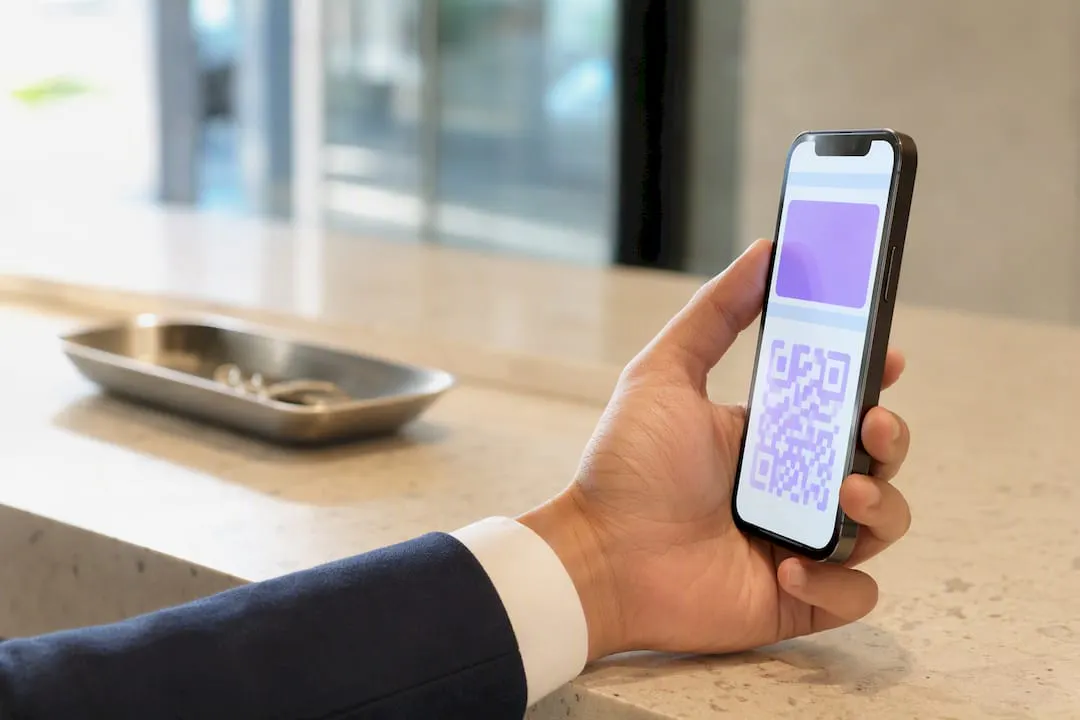
- Display the QR code on your phone screen for someone to scan directly.
- Send the pass link through text, email, or a messaging app.
- Tap via NFC, where supported, for a phone-to-phone exchange without opening a camera.
- Drop the link into your email signature so every message you send carries a live add option.
Android users tapping your link get the native “Add to Google Wallet” prompt immediately. iPhone users and anyone on desktop still get value: the link opens your live profile in a browser, complete with contact details and whatever call-to-action you set. Nobody hits a dead end, they just get two different experiences depending on their device.
Keeping Your Pass Current
The single biggest advantage a Wallet pass has over a printed card or a static vCard is that it doesn’t go stale the moment you change jobs.
- Your live profile link updates in real time. Change your title, phone number, or company, and anyone holding your pass sees the new version next time they open it.
- The pass front itself has a fixed display area, so cramming in too many fields makes it unreadable rather than more useful.
- Offline viewing can lag behind your latest edit until the phone reconnects and refreshes the cached pass.
Keep the essentials, name, title, company, one link, on the visible front, and push everything else to the profile behind it. Design guidance from tools like Adobe Express consistently backs this up: legible text and a clean single call-to-action beat a crowded card every time.
Pro Tip: After any major update to your title or company, open your own pass and confirm it refreshed before you hand it to the next person you meet.
Fixing Common Wallet Pass Problems
Most issues trace back to one of three causes.
- No “Add to Wallet” button appears. Confirm the Google Wallet app is installed, you’re signed into a Google account, and the link is formatted as a proper Wallet-compatible URL rather than a plain file download.
- QR code won’t open anything. Test the underlying link in a separate browser tab. If it fails there too, the pass URL itself is broken, not your camera or scanner.
- Recipient sees outdated information. Check whether your pass links to your live profile or was exported as a static one-time file. Static exports need to be regenerated and resent; live-linked passes should update on their own.
Why Teams Outgrow DIY Wallet Passes
A single Wallet pass for one professional is simple. A hundred passes across a sales team, all needing the same logo placement, the same brand colors, and the same fields, is a different problem entirely. That’s where a managed platform earns its cost, and it’s a calculation worth running through a standard project ROI framework before committing budget.
Consistency at scale, centralized updates when someone changes roles, and visibility into which cards actually get used, those are the gaps DIY tools rarely close. That’s the exact case for choosing a managed platform over a one-off generator once your team crosses a handful of people.
— KADO
How KADO Handles Your Google Wallet Business Card
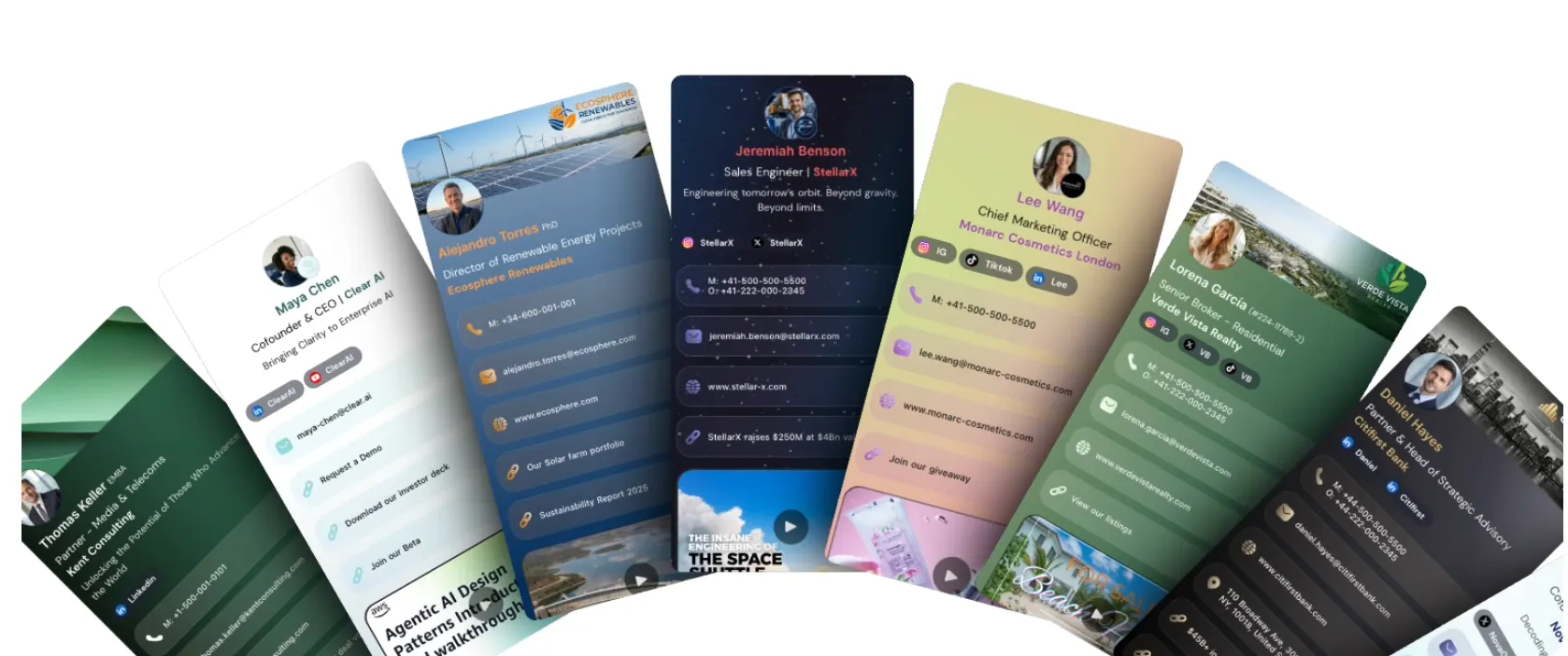
Wallet-compatible passes can be built directly from your digital profile, so the card you hand out and the card your CRM sees can come from the same live record. Passes often support QR display, NFC tap where the device allows it, and shareable links, with updates pushing through instantly across issued cards.
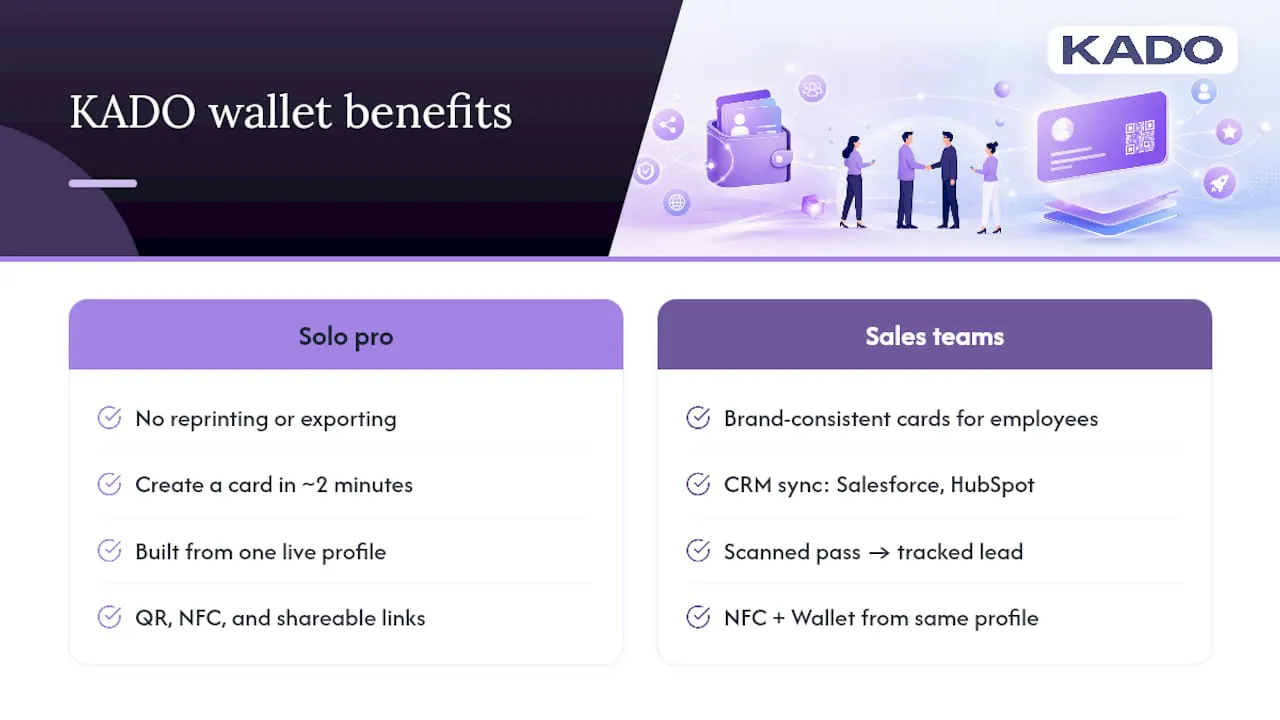
For a solo professional, that means never reprinting or re-exporting anything again. For a sales or recruiting team, it means brand-consistent cards across every employee, plus CRM sync through integrations like Salesforce and HubSpot, so a scanned pass turns into a tracked lead instead of a business card sitting in someone’s pocket. If you’re also managing NFC cards alongside your Wallet passes, KADO’s NFC card options for teams cover both formats from the same profile.
You can create your digital business card in about two minutes and generate your first Wallet pass in that same session. Teams evaluating a wider rollout can also request a demo to see admin controls, analytics, and CRM sync in action before committing. And if your card’s landing page needs a refresh to match, general website best practices are worth a look too.
Sources
For deeper technical detail, see the official Google Wallet documentation and Adobe Express for card design guidance.
Frequently Asked Questions
Can I add my business card to Google Wallet?
Yes. Any business card converted into a Wallet pass format, either through a no-code generator or the Google Wallet API, can be added to Google Wallet on an Android device.
Does Google have a digital business card?
Google Wallet doesn’t offer its own built-in business card creator, but it fully supports Wallet passes built by third-party platforms like KADO or through Google’s own developer API.
How do I create an NFC business card on Android?
NFC business cards use a physical smart card or tag paired with your digital profile, which is a separate hardware step from a Wallet pass; platforms like KADO offer NFC cards alongside Wallet pass generation.
Can you use Google Wallet for business?
Yes, businesses regularly use Google Wallet for employee ID passes, loyalty cards, and digital business cards, with teams often managing dozens or hundreds of passes through a centralized platform rather than one-off exports.