Go back to list of posts
Stop Reprinting LinkedIn Business Cards: Use a URL QR and Backup Link
Last modified: September 7, 2026


There are three practical ways to put your LinkedIn profile on a business card: a printed custom URL, a URL-based QR code, or a digital business card with an NFC tap or shareable link. The best default for most professionals is a URL-based QR code on the back of the card with your short custom URL printed underneath as a backup. Before you print anything, test the link on two different phones and confirm your profile is set to public.
Using a URL-based QR code is preferable for print because it scans on any phone camera and directs users to your LinkedIn profile regardless of app installation. Testing the QR code across multiple devices with and without the LinkedIn app installed ensures reliable performance before printing large batches. Keeping the QR code at a minimum size of one inch with a clear quiet zone and high contrast improves scan success, especially in low-light or crowded environments. Dynamic QR codes and digital business cards allow updates to your LinkedIn profile and contact details without reprinting, maintaining accuracy after role changes. Including a clear call-to-action next to the QR code, such as “Scan to connect on LinkedIn,” significantly increases scan-to-action rates.
Which LinkedIn Business Card Sharing Method Should You Use?
The right method depends on who you’re handing the card to and what happens after they take it. A QR code is fast but useless if it’s poorly printed. A custom URL is foolproof but slower to type. A digital card does more but costs more to set up. Here’s how to match the method to the moment.
- Printed custom URL (linkedin.com/in/yourname): the most reliable fallback. It works with zero scanning skill required, which matters for older clients, formal industries like law or finance, or anyone handed a card in dim lighting where a QR camera struggles.
- URL-based QR code: the fastest option at conferences and trade shows, where recipients want to connect and move on in seconds. A QR code business card that encodes your actual LinkedIn URL scans on any phone camera, unlike codes built for LinkedIn’s own in-app scanner.
- Digital business card with NFC or wallet pass: the strongest option when you want more than a LinkedIn connection. It lets you capture the other person’s contact details too, book a meeting on the spot, and route the interaction into a CRM.
A recruiter meeting dozens of candidates in one day benefits most from the QR route, since it removes the need to type a name into search. A sales rep working a booth benefits more from a full digital card, because a lead capture form does the follow-up work automatically. A freelancer at a design conference might skip LinkedIn priority entirely and point the QR straight at a portfolio, with LinkedIn listed as a secondary field.
How Do You Set Up a Universal LinkedIn QR Code for Print?
Getting this right takes about fifteen minutes, and skipping a step is the reason most printed QR codes fail months later.
- Claim your custom URL. In LinkedIn settings, under “Edit public profile & URL,” set a clean handle like linkedin.com/in/firstlastname. Avoid the default string of numbers LinkedIn assigns automatically.
- Generate a URL-based QR code, not an in-app one. Feed your custom LinkedIn URL into a standard QR generator. A URL-based QR works on any phone camera and deep-links into the LinkedIn app if it’s installed, while LinkedIn’s own in-app QR only scans inside LinkedIn’s scanner, which most people never open.
- Export in the right file formats. Save an SVG for anything going to a print shop (it scales without losing sharpness), a PNG for digital placements like email signatures, and a PDF for the printer’s proof file. Set resolution to 300 DPI minimum for anything physical, as detailed in this guide to adding LinkedIn to a business card.
- Test before you commit to a print run. Scan the code on an iPhone that has the LinkedIn app installed and confirm it opens the app directly. Then scan it on an Android phone without the app and confirm it opens your profile in a browser instead. Finally, open the link in a private or incognito browser tab to see exactly what a stranger sees.
Pro Tip: Order 25 to 50 cards from your first print run instead of 500. QR scanning issues almost always show up in the first batch, and a small run means you’re not stuck reprinting a thousand cards that don’t scan correctly under fluorescent lighting.
Testing across an app-present phone and an app-absent phone matters more than most people realize. Verifying both paths before a print run catches the single most common failure: a code that only works when LinkedIn happens to be installed.
What Are the Design and Print Specs for a Scannable QR Code?
A QR code that looks fine on a screen can fail completely once it’s shrunk onto a two-by-three-inch card. Size and contrast decide whether a scan takes one second or gets abandoned.
- Minimum size: 0.75 to 1 inch square (roughly 2 cm by 2 cm) on a standard card. Anything smaller starts failing on cheaper phone cameras or in low light. Signage and event badges should go larger.
- Quiet zone: leave a clean white border around the entire code, and keep any text at least 0.1 inches away from its edge. Crowding the code with a logo or tagline is the fastest way to break a scan.
- Contrast: stick with true black on white. LinkedIn blue as a foreground color looks polished but drops contrast enough to cause scan failures on some cameras. If you’re placing a logo in the center, keep it under 20% of the code’s total area.
- Placement: back center is the standard choice, since it keeps the front clean for your name and title while giving the scanner obvious, uncluttered access. A front contact block with the QR beside your name works too if the back is reserved for other branding.
- Paper and finish: choose matte or uncoated stock. Glossy card stock reflects camera flash and kills scans in bright rooms.
A QR code printed at the 0.75 to 1 inch minimum with a clean quiet zone and matte finish scans reliably on nearly every modern phone, which is the baseline every other design choice should protect.
How Does a Digital Business Card Extend a LinkedIn Connection?
A LinkedIn QR code gets someone to your profile. A digital business card gets you their information back, plus a record of the interaction. That difference is the whole reason digital cards exist as a category.
A well-built digital card typically includes your LinkedIn link, direct email, phone number, a calendar booking link, a portfolio or case study link, and any files worth sharing on the spot, like a one-page resume or a service overview. You can distribute it several ways: a shareable short link dropped into a LinkedIn direct message, an NFC tap for in-person exchanges, an Apple Wallet or Google Wallet pass that lives on someone’s lock screen, or an embed inside your LinkedIn Featured section so profile visitors see it without you sending anything at all.
The real advantage shows up after the event. Digital business cards that sync captured contacts into CRMs like Salesforce or HubSpot remove the manual data entry that causes most post-conference leads to go cold. Instead of a stack of cards you’ll transcribe next weekend, or never, the contact lands in your pipeline the moment they scan.
- Post-event follow-up: a lead captured at a booth arrives tagged with the event name, ready for a sequence.
- DM sharing: send your card link directly in a LinkedIn message instead of asking someone to search your name.
- Featured section placement: embed your card on your LinkedIn profile itself, so anyone visiting gets the fuller version without a card ever changing hands.
What CTA Should You Print Next to a LinkedIn QR Code?
A naked QR code with no label asks the viewer to guess what happens if they scan it, and a lot of people won’t bother. Naming the action changes that.
- “Scan to connect on LinkedIn” works better than “Scan me” because it removes the guesswork about what happens next.
- “Scan to view my portfolio” fits designers, photographers, and writers whose real proof is visual work, not a resume.
- “Scan to book 15 minutes” fits consultants and sales reps who want the scan to end in a calendar invite, not just a follow.
Pairing a QR code with a specific, named CTA measurably increases scan-to-action rates compared to an unlabeled code, and the effect is intuitive: people act on instructions, not mysteries. This same logic applies to CTA design generally across marketing materials, not just business cards.
One rule matters more than any CTA wording: put exactly one code on the card. A card with a LinkedIn QR, a website QR, and an Instagram QR forces the recipient to choose, and most will choose to scan nothing. Pick the single highest-value destination for your goals and commit to it.
Pro Tip: If your LinkedIn “About” section includes a line inviting connections to mention where they met you, recipients are more likely to send a personalized request instead of a blank one, which makes it easier to remember who they are three weeks later.
How Do You Fix a LinkedIn QR Code That Won’t Scan?
Run through these checks in order before blaming the printer.
- Test on three environments: an iPhone with the LinkedIn app installed, an Android phone without it, and a private browser tab on desktop. Confirming behavior across app-present and app-absent devices catches most failures before they reach a print shop.
- Code too small: if it’s under 0.75 inches, scale it up. Camera focus struggles with fine detail at that size.
- Low contrast: swap colored foregrounds for solid black, and check the file wasn’t compressed into blurriness during export.
- In-app-only code: if you generated it through LinkedIn’s native QR feature instead of a URL-based generator, replace it. It only scans inside LinkedIn’s own scanner.
- Private profile: if your visibility settings block public view, anyone without a LinkedIn account or connection gets an error page instead of your profile.
- Outdated URL: if you changed your custom handle or LinkedIn deprecated an old link structure, the printed code silently breaks. Dynamic QR codes solve this permanently by letting you repoint the destination URL without touching the printed card at all.
How KADO Handles LinkedIn Sharing Without Reprinting Cards
Static QR codes carry one real weakness: they lock a printed card to a URL that may not survive your next job change. KADO addresses that by routing every card through dynamic links, NFC taps, and wallet passes, so you can update your LinkedIn URL, title, or company at any point without reprinting a single card.
- Editable links mean the QR code on a card printed today still points to the correct profile a year from now, even after a role change.
- Built-in lead capture, notes, tags, and reminders turn a scan into an organized follow-up instead of a name you vaguely recall from a conference.
- CRM sync with Salesforce, HubSpot, and Microsoft Dynamics moves captured contacts into existing sales workflows automatically.
- Availability on web, iOS, and Android means the same card setup works whether you’re networking in person or sharing a link over a video call.
When Is the Right Moment to Hand Someone Your LinkedIn Card?
Timing changes how a scan is received almost as much as the design does. Handing someone a card mid-sentence, before you’ve actually had a conversation, reads as transactional and gets forgotten fast.
The better sequence: talk first, exchange second. Let the conversation establish why connecting matters, then offer the card as the natural next step, not the opening move. At a conference booth, this looks like answering someone’s question fully before reaching for your card. At a one-on-one meeting, it looks like waiting until the meeting’s substance is settled before mentioning LinkedIn at all.
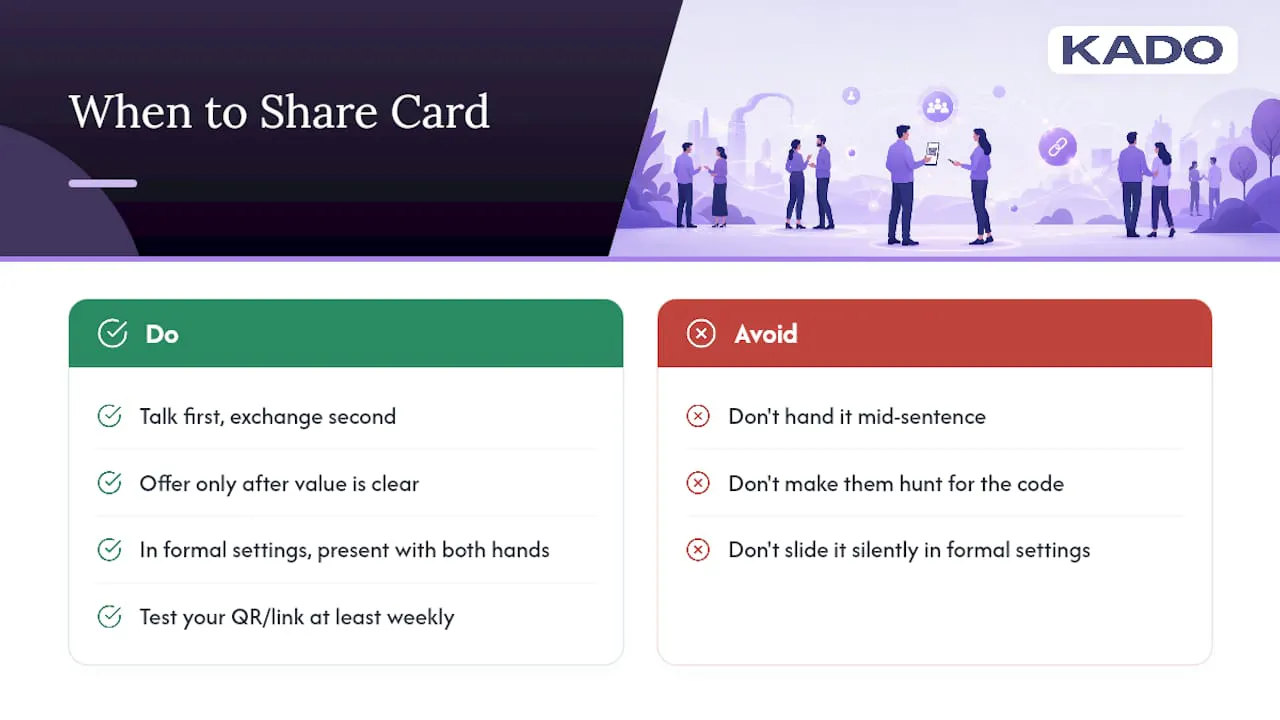
Etiquette also depends on region and industry. In more formal settings like legal or financial services, offer the card with both hands and a brief verbal cue, “Feel free to scan this to connect,” rather than sliding it across a table silently. In faster-paced settings like tech meetups, a quick QR scan mid-conversation is normal and expected.
Never make someone hunt for the code. If a card requires flipping it over, holding it flat, and adjusting the light before it scans, that friction costs you connections. And never hand out a card you haven’t tested yourself that week, since URLs change and profiles get set to private more often than people remember to check.
What Should You Control on Your LinkedIn Profile Before Sharing It?
A QR code sends strangers straight to your profile, which means your privacy settings decide what they actually see. Review three things before your next print run.
First, confirm your profile is set to public, or at minimum public to anyone with the link. A profile locked to “connections only” shows an error page to anyone scanning your card who isn’t already connected to you, which defeats the entire purpose of the code.
Second, audit what’s visible to people outside your network. LinkedIn lets you control whether your connection list, activity feed, and profile photo show to public visitors. If you don’t want strangers browsing your full connections list, adjust that in your visibility settings before, not after, you hand out a hundred cards at a conference.
Third, decide what contact information actually lives on your public profile versus what only comes through the card itself. Many professionals prefer to keep a direct phone number off LinkedIn entirely and route that detail through a digital business card’s contact form instead, where they control who receives it and when.
Can You Track How Often Your LinkedIn Business Card Gets Scanned?
A plain printed QR code that just links to LinkedIn gives you no data at all. LinkedIn itself doesn’t tell you a scan came from your business card versus a random profile visit.
A digital business card platform closes that gap. Every scan, tap, or link click gets logged with a timestamp, and some platforms break it down by location or event, which matters if you’re comparing return on a conference booth against a smaller local meetup. That data turns a vague sense of “networking is going well” into an actual number you can act on, and it’s the reason teams tracking event ROI prefer a trackable link over a static code with no reporting behind it.
If you’re not ready to move to a full digital card platform, a simpler workaround is a link shortener with built-in analytics, pointed at your LinkedIn URL. It won’t capture contact details the way a lead form does, but it will tell you whether anyone is scanning the code at all, which is often the first thing worth confirming before investing more in card design.
Role-Specific Sharing: Sales, Recruiting, and Freelance
Sales reps get the most value from a full digital card with a calendar link and contact form built in, since the goal is converting a booth conversation into a scheduled call, with a LinkedIn QR on the back as backup for anyone who prefers a straight connection.
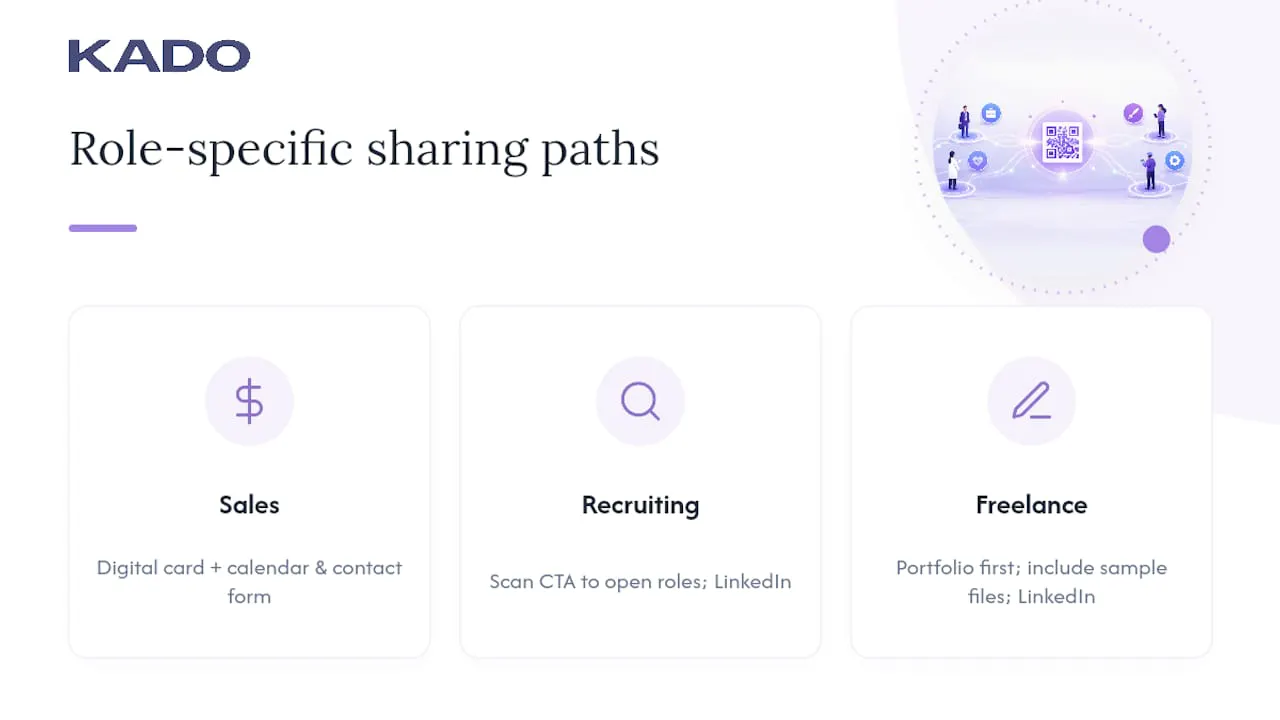
Recruiters should push LinkedIn and a portfolio or shortlist link to the front of the interaction. A CTA like “Scan to view open roles” often converts better at a career fair than a generic connect request, since it gives the candidate an immediate reason to act.
Freelancers do best leading with proof of work rather than LinkedIn alone. A CTA like “Scan to see my work” pointed at a portfolio, with sample files included in a digital card, tends to land harder than a LinkedIn link by itself.
Why Most Advice on LinkedIn QR Codes Misses the Real Problem
Most guides treat QR code design as the hard part. It isn’t. The actual failure point is durability. Cards get printed once and used for years, but URLs, job titles, and even LinkedIn’s own URL structure change constantly. A perfectly designed static QR code from two years ago that still points to an old employer’s profile page is worse than no code at all, because it actively damages trust at the exact moment someone tries to connect.
The overlooked fix isn’t better QR design. It’s treating the printed card as a pointer to something editable, not as the final destination itself. A card that routes through a dynamic link survives a job change, a rebrand, or a LinkedIn URL update without a single reprint. That’s a fundamentally different mental model than “design a good QR code,” and it’s the one most business card guides skip entirely, because it requires thinking about the card as infrastructure rather than a one-time print job.
The professionals who get the most out of LinkedIn business card sharing are the ones who stop optimizing the code and start optimizing what’s behind it.
— KADO
Stop Reprinting Cards Every Time Your Title Changes
KADO removes the reprint problem entirely by putting a dynamic, editable link behind your QR code or NFC card instead of a static URL. Change your job title, company, or LinkedIn handle, and every card you’ve already printed or tapped updates automatically, no new print run required.
Beyond the link itself, KADO adds what a plain QR code can’t: built-in lead capture and contact management with notes, tags, and follow-up reminders, plus CRM sync so captured contacts land directly in Salesforce, HubSpot, or Microsoft Dynamics. Teams that handle sensitive contact data can review KADO’s security and compliance information before rolling it out organization-wide. If you’re ready to move past static print codes, the NFC business card options are the fastest way to see the difference at your next event.
Sources
Frequently Asked Questions
How Do I Put My LinkedIn on a Business Card?
Print your custom LinkedIn URL (linkedin.com/in/yourname) directly on the card, or generate a URL-based QR code that links to that same address and place it on the back with a short CTA like “Scan to connect on LinkedIn.”
What Is the 3/2/1 Rule on LinkedIn?
Definitions of this rule vary across networking communities, and the article doesn’t have a verified, consistent version to cite, so treat any specific 3/2/1 formula you encounter with caution rather than as an official LinkedIn guideline.
How Do I Share My Business Card Digitally?
Use a shareable link, an NFC tap, or an Apple Wallet or Google Wallet pass generated by a digital business card platform, which lets recipients save your contact details and LinkedIn profile in one action without typing anything.
Should You Include LinkedIn on a Business Card?
Yes, for most professionals, since it gives recipients a direct way to verify your role, see mutual connections, and follow up beyond a single conversation, especially when paired with a scannable QR code instead of relying on a name search.
Why Shouldn’t I Use LinkedIn’s Built-In QR Code for Print?
LinkedIn’s in-app QR code only scans reliably inside LinkedIn’s own scanner feature, while a URL-based QR code generated separately works with any phone’s standard camera app and still deep-links into LinkedIn when the app is installed.